> For the complete documentation index, see [llms.txt](https://panduan.inviday.id/llms.txt). Markdown versions of documentation pages are available by appending `.md` to page URLs; this page is available as [Markdown](https://panduan.inviday.id/en/getting-started/create-an-account.md). Agents can also search and read this documentation through its [MCP server](https://panduan.inviday.id/~gitbook/mcp).
# Create an Account
Sign up for inviday.id with email or a Google account.
You can sign up with an email and password, or straight away with a Google account. After signing up, you're taken to onboarding to choose an account type.
{% tabs %}
{% tab title="Sign up with email" %}
{% stepper %}
{% step %}
### Open the sign-up page
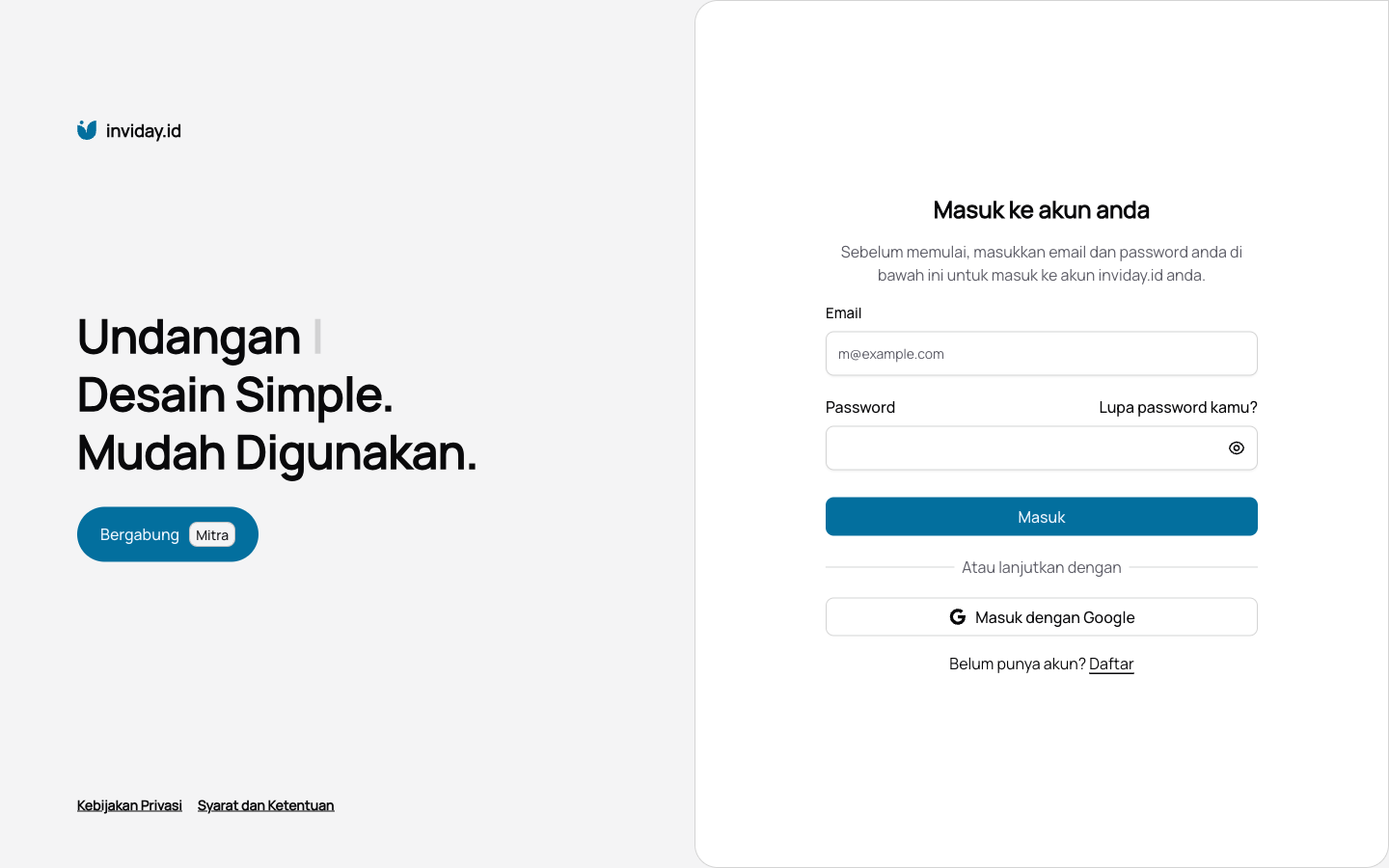
On [inviday.id](https://inviday.id/en), click **Log in / Sign up** in the top navigation. On the sign-in page, click **Sign up** below the form.
Sign-in page
{% endstep %}
{% step %}
### Fill in the form
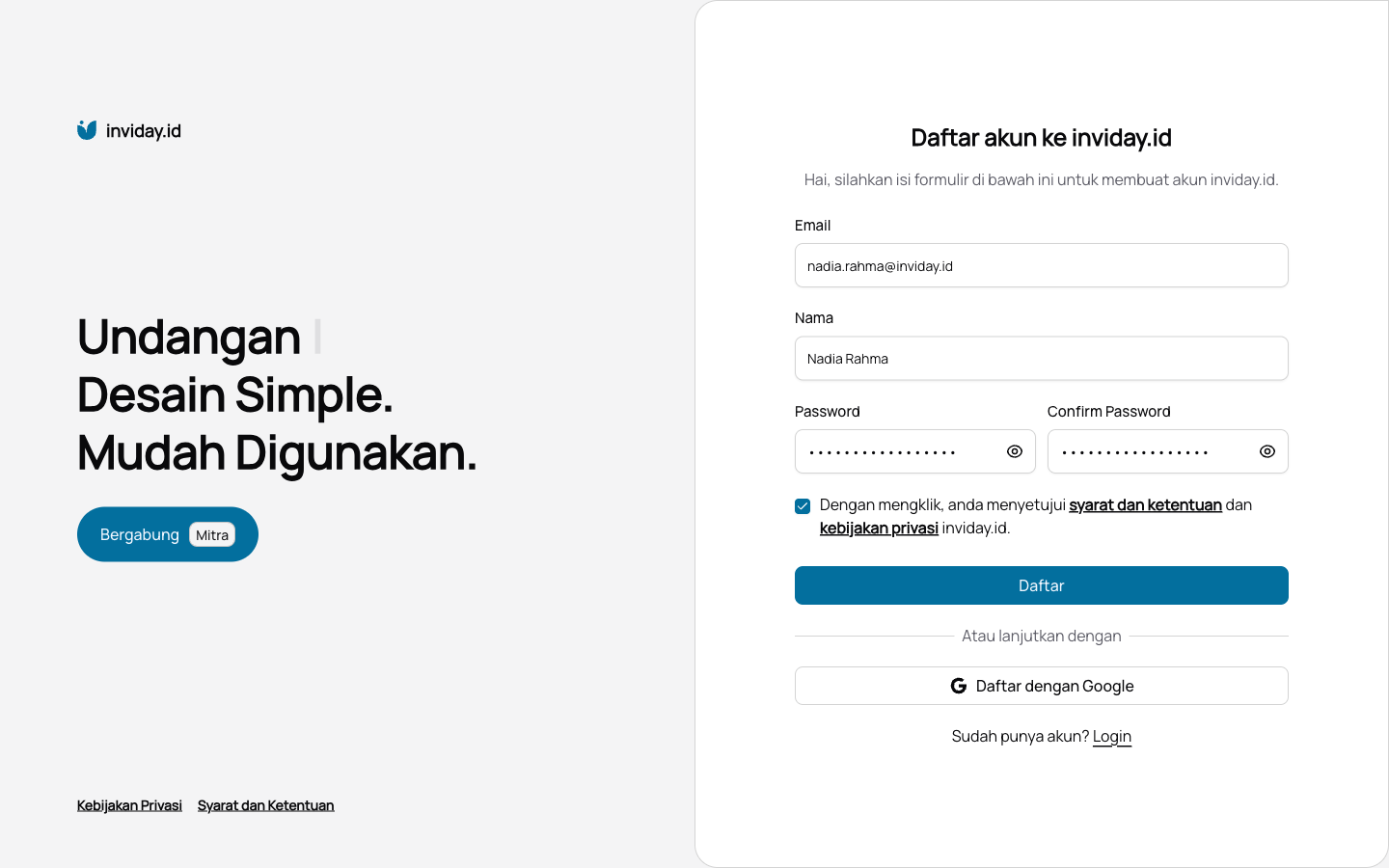
Fill in **Email**, **Name**, **Password**, and **Confirm Password**, then click **Sign up**.
Sign-up page
{% endstep %}
{% step %}
### Enter the verification code
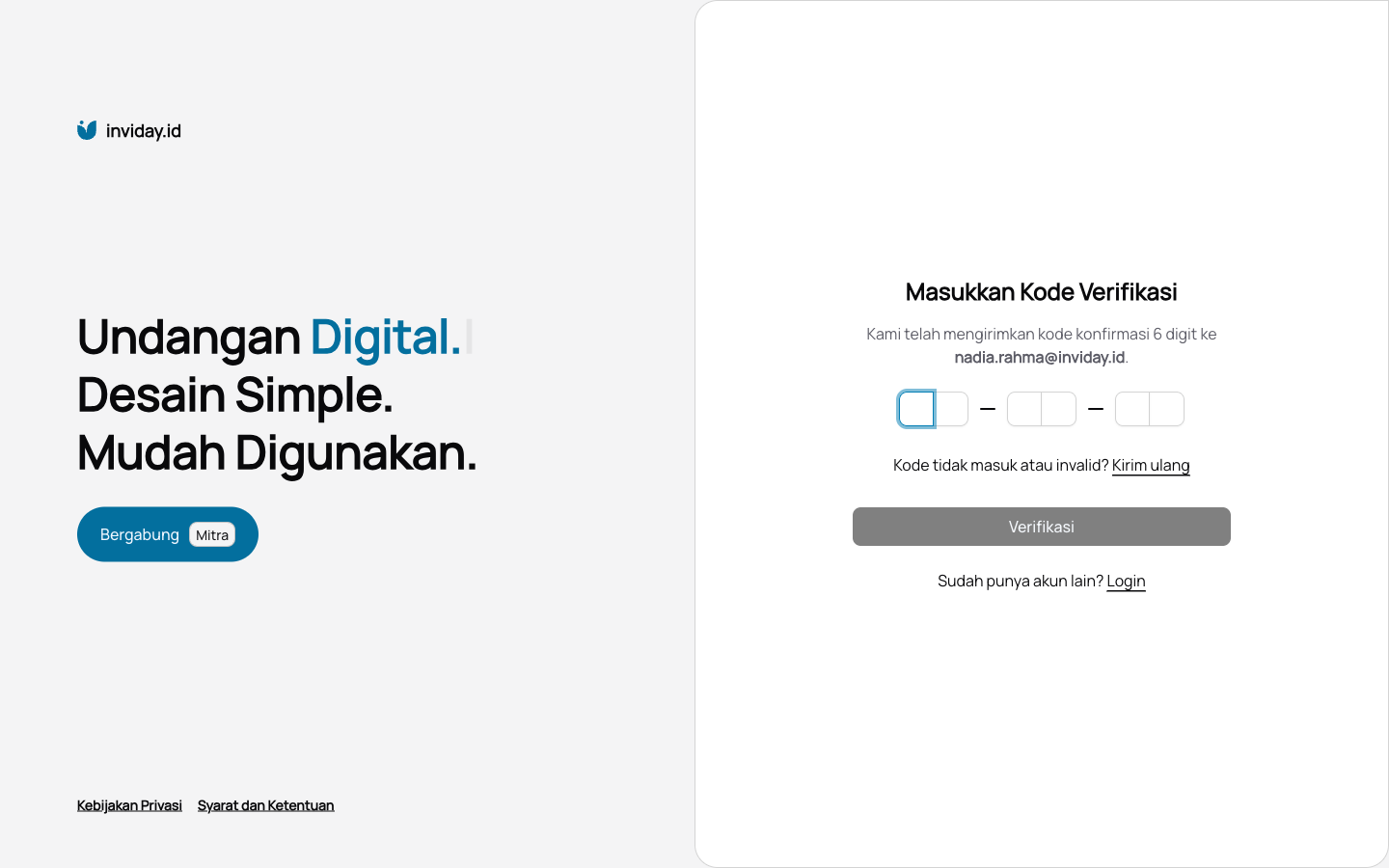
We send a verification code to your email. Enter it on the **Enter the Verification Code** page.
Verification code page
{% hint style="info" %}
No email? Check your **Spam** folder, or wait for the countdown to finish and click **Resend**.
{% endhint %}
{% endstep %}
{% endstepper %}
{% endtab %}
{% tab title="Sign up with Google" %}
On the sign-up or sign-in page, click **Sign up with Google** (or **Sign in with Google**) and choose your Google account. You don't need a verification code.
{% endtab %}
{% endtabs %}
## Finish onboarding
Once your account is created, you go through three onboarding steps: choose an account type, add your phone number, then fill in your invitation or business details. Follow the guide for the account type you choose:
* [Sign Up for a Personal Account](https://panduan.inviday.id/en/getting-started/create-an-account/personal-account-sign-up.md): to make your own wedding invitation.
* [Sign Up for a Business Account](https://panduan.inviday.id/en/getting-started/create-an-account/business-account-sign-up.md): for businesses that make invitations for clients.
Not sure which to choose? Read [Account Types Compared](https://panduan.inviday.id/en/account-types/compare-account-types.md). You can still change your account type after onboarding.
{% hint style="info" %}
Invited by a friend? Sign up with your friend's referral link so their code is applied automatically during onboarding. If you only have the code, enter it in the **Have a referral code?** field below the onboarding steps. While a new friend promo is running, you get a discount on your first invitation. See [Referral Program](https://panduan.inviday.id/en/plans-and-payment/referral-program.md#signing-up-with-a-referral-code).
{% endhint %}
## Forgot your password
On the sign-in page, click **Forgot your password?**, enter your email, then follow the link we send you to set a new password.