> For the complete documentation index, see [llms.txt](https://panduan.inviday.id/llms.txt). Markdown versions of documentation pages are available by appending `.md` to page URLs; this page is available as [Markdown](https://panduan.inviday.id/en/guests-and-sharing/send-invitations.md). Agents can also search and read this documentation through its [MCP server](https://panduan.inviday.id/~gitbook/mcp).
# Send Invitations
Send personal links over WhatsApp, copy a link, or download a QR code.
Every guest should get a personal link. It shows the guest's name on the invitation cover, records when the invitation is opened, and links their RSVP to the guest list.
Open the **Send Invitation** menu on the Personal dashboard, or **Cover and Share** → **Set Message and Send** in Studio for Business accounts. This page has three tabs:
| Tab | What it does | Plan |
| ----------- | ------------------------------------------------- | ---------------------------- |
| **Message** | Write a WhatsApp message and send it right away. | Premium and above, once paid |
| **Link** | Copy a personal link or share it on social media. | Every plan |
| **QR Code** | Download a QR code for printed invitations. | Exclusive, once paid |
## Personalizing the link
In every tab, fill in the personalization fields:
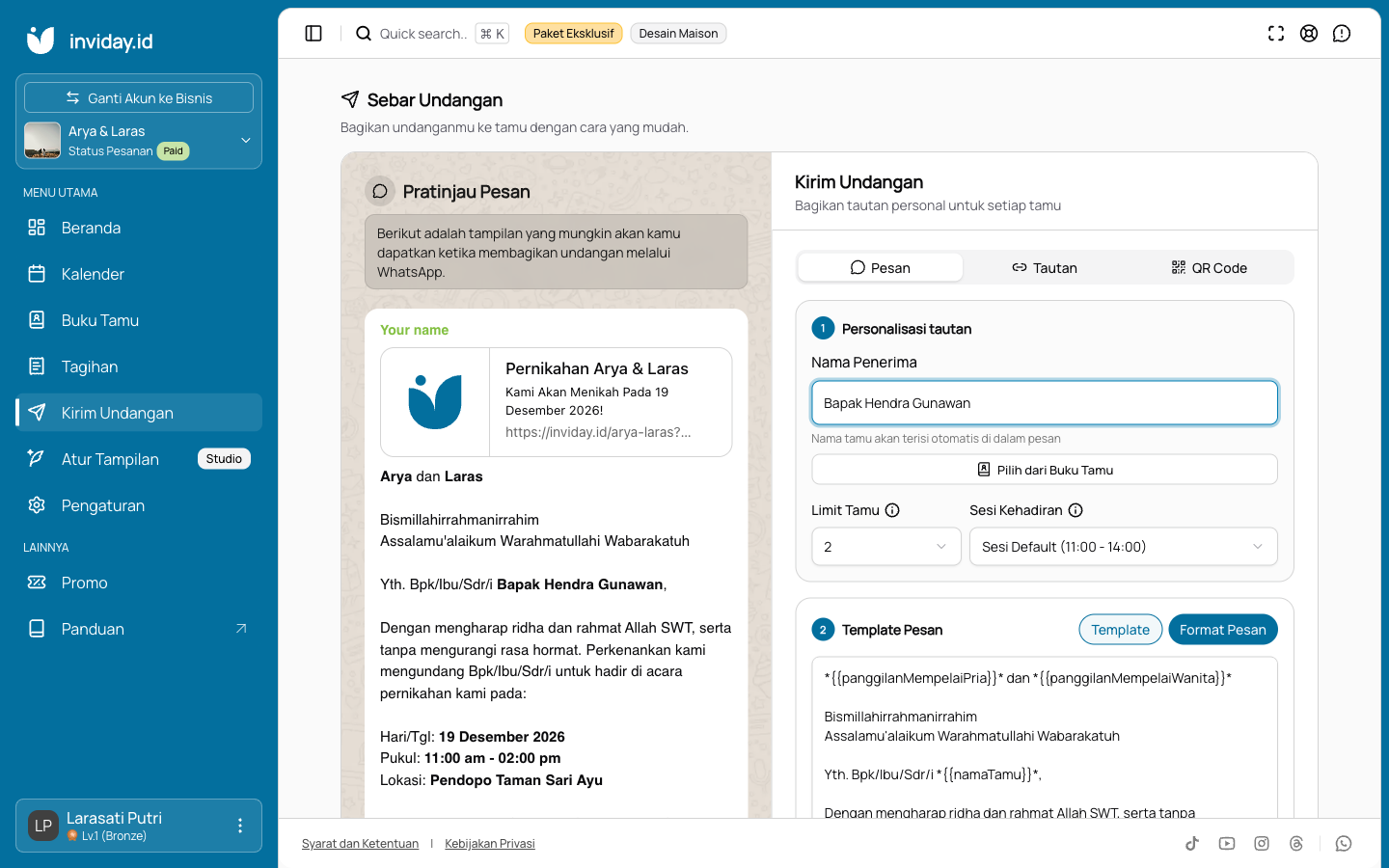
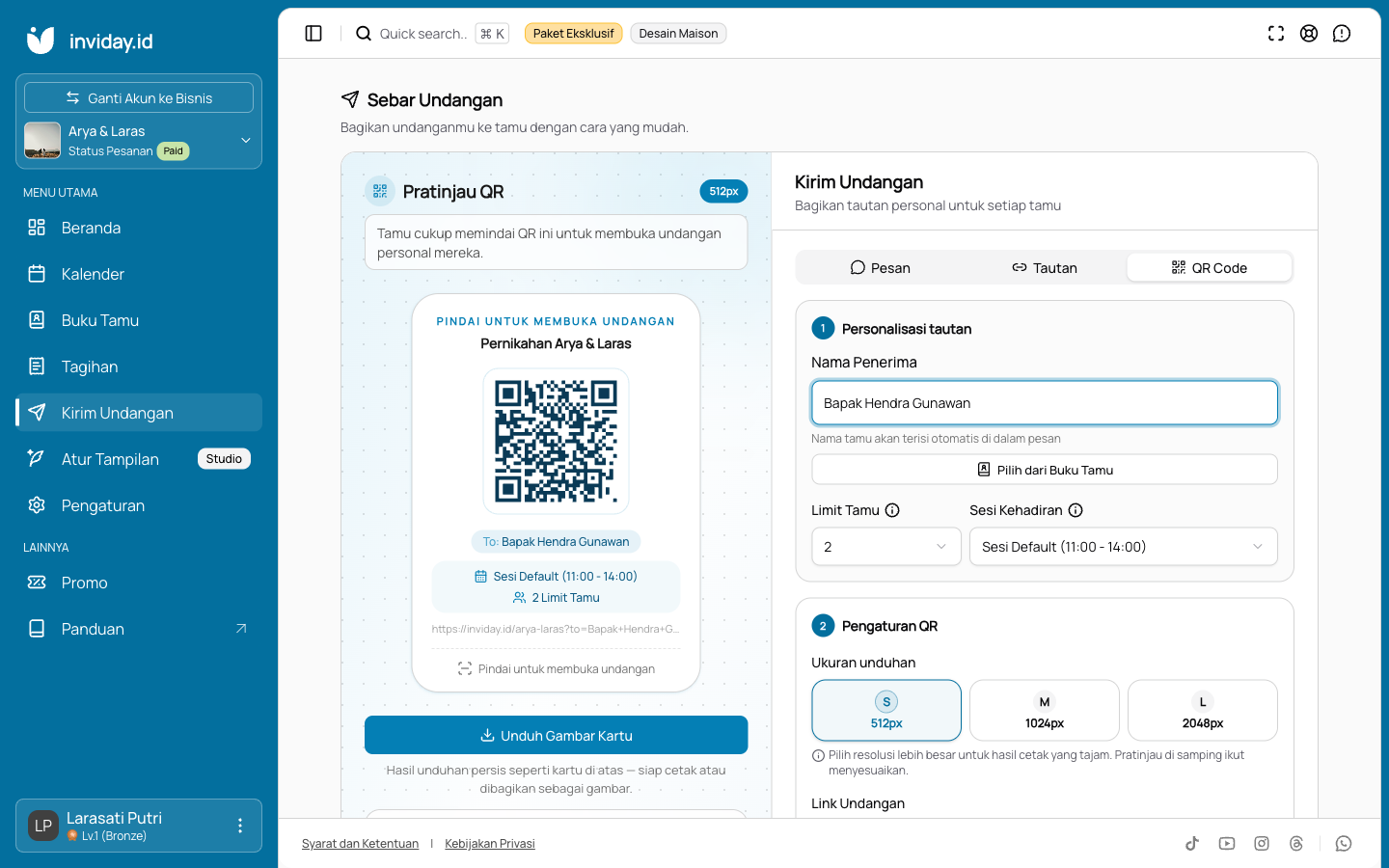
* **Recipient Name**: the guest's name. Click **Choose from Guestbook** to pick a guest who's already on the list, so their guest code goes into the link too.
* **Guest Limit**: how many people the guest can choose in the RSVP, 1 to 6.
* **Attendance Session**: if the event has several [sessions](https://panduan.inviday.id/en/studio/event-list.md), the guest is directed to the session you choose.
## Sending over WhatsApp
{% stepper %}
{% step %}
### Choose a template
In the **Message** tab, click **Template**, then choose a template that suits your invitation's theme.
{% endstep %}
{% step %}
### Adjust the message
Edit the **Message Template** as you like. The variables in the message are replaced automatically for each guest. Click **Save Template** so you can use the template again.
{% endstep %}
{% step %}
### Send
Fill in the **Recipient Name**, check the **Message Preview**, then click **Share Invitation** to open WhatsApp. You can also click **Copy Message Results** and paste it yourself.
{% endstep %}
{% endstepper %}
The Message tab: the message preview on the left, personalization and templates on the right
Message template variables
| Variable | Replaced with |
| --------------------------------------------------------- | ---------------------------------- |
| `{{guestName}}` | The recipient's name |
| `{{groomNickname}}`, `{{brideNickname}}` | The couple's nicknames |
| `{{groomName}}`, `{{brideName}}` | The couple's full names |
| `{{eventDate}}`, `{{eventDay}}` | The main event's date and day |
| `{{eventTime}}`, `{{eventTimeStart}}`, `{{eventTimeEnd}}` | The main event's time |
| `{{eventLocation}}`, `{{eventAddress}}` | The main event's venue and address |
| `{{invitationLink}}` | The guest's personal link |
The Indonesian variables (`{{namaTamu}}`, `{{tautanUndangan}}`, and the rest) work too.
WhatsApp text formatting
| Type | Result |
| -------------- | ----------------- |
| `*text*` | **bold** |
| `_text_` | *italic* |
| `~text~` | ~~strikethrough~~ |
| ` ```text``` ` | `monospace` |
## Downloading a QR code
In the **QR Code** tab, fill in the personalization, then choose a **Download size** (512, 1024, or 2048 px). Click **Download QR (PNG)**, **Download QR (SVG)**, or **Download Card Image** for a print-ready card.
The QR Code tab with a card preview
{% hint style="info" %}
For printing, choose a 1024 px or 2048 px PNG so the QR stays sharp, and test-scan it with a phone camera before printing many.
{% endhint %}
## Getting your family to help send them
Click **Share Page** to copy the address of the Send Invitation page. Anyone who opens it can write a message and send invitations, without signing in. Only you, or people with [edit access](https://panduan.inviday.id/en/guests-and-sharing/share-edit-access.md), can save templates. Others can open this page once the invitation is paid.