> For the complete documentation index, see [llms.txt](https://panduan.inviday.id/llms.txt). Markdown versions of documentation pages are available by appending `.md` to page URLs; this page is available as [Markdown](https://panduan.inviday.id/en/studio/edit-in-the-preview.md). Agents can also search and read this documentation through its [MCP server](https://panduan.inviday.id/~gitbook/mcp).
# Edit in the Preview
Select sections, change texts, replace photos, and move sections right in the invitation preview.
In **Edit** mode, you can change the invitation preview in Studio directly: click a section to open its settings, double-click a text to change it, and double-click a photo to replace it. This works in the desktop preview.
{% hint style="info" %}
In Edit mode, the invitation's buttons (open cover, music, RSVP) don't work, so that your clicks select sections. Switch to **Preview** mode to try them as a guest would.
{% endhint %}
## Selecting a section
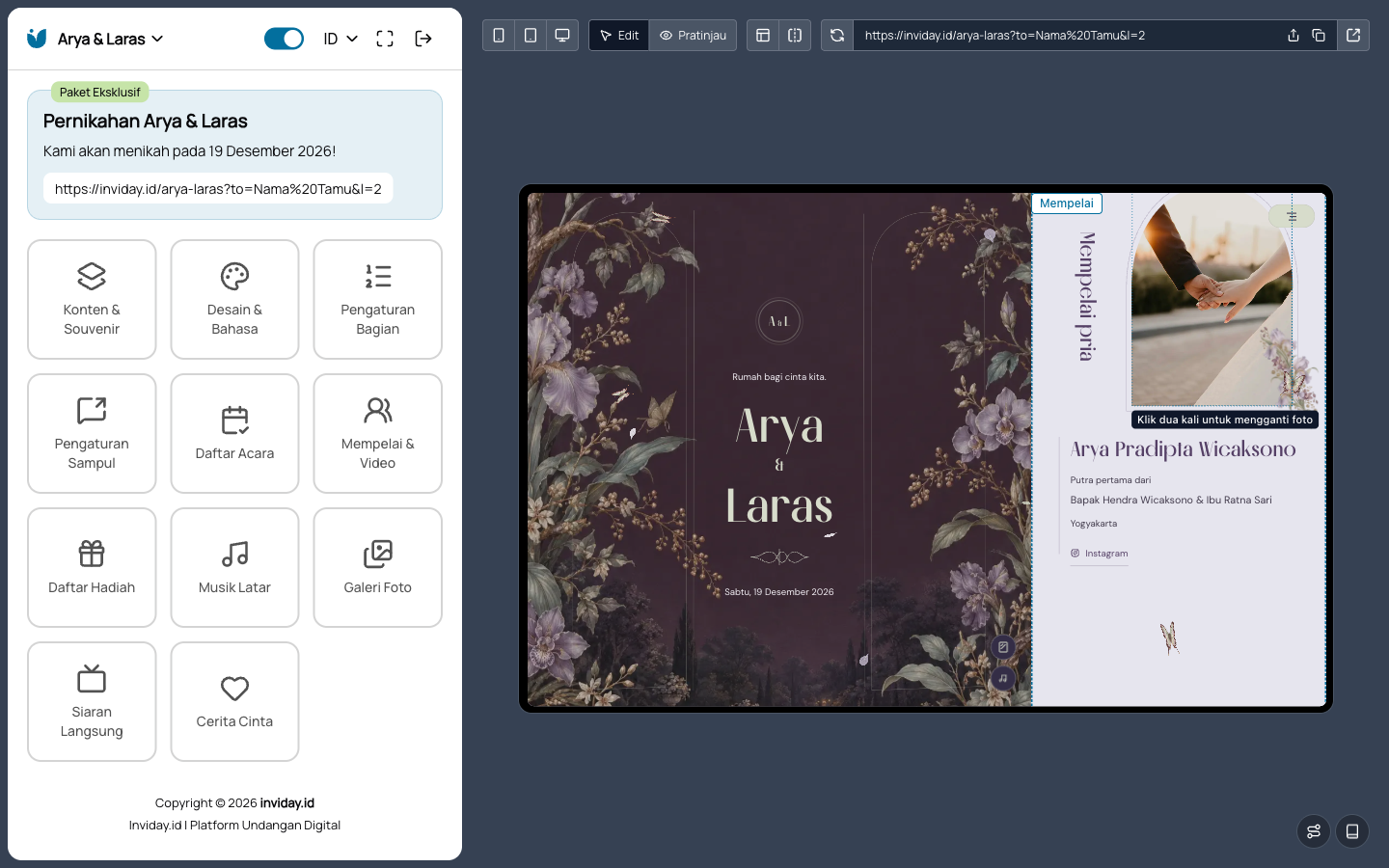
Move your cursor over the invitation to see the outline of each section. Click a section to select it; its settings panel opens on the left. Press Esc to clear the selection.
A section's outline and name show when your cursor is over it
## Moving a section
Select a section, then use the arrow buttons on its label, drag the section, or press Alt+↑ / Alt+↓. To set the whole order at once, use [Section Settings](https://panduan.inviday.id/en/studio/section-settings.md).
A section you've hidden shows as a gray bar that says it's "hidden from guests". Guests don't see it.
## Changing a text
{% stepper %}
{% step %}
### Double-click the text
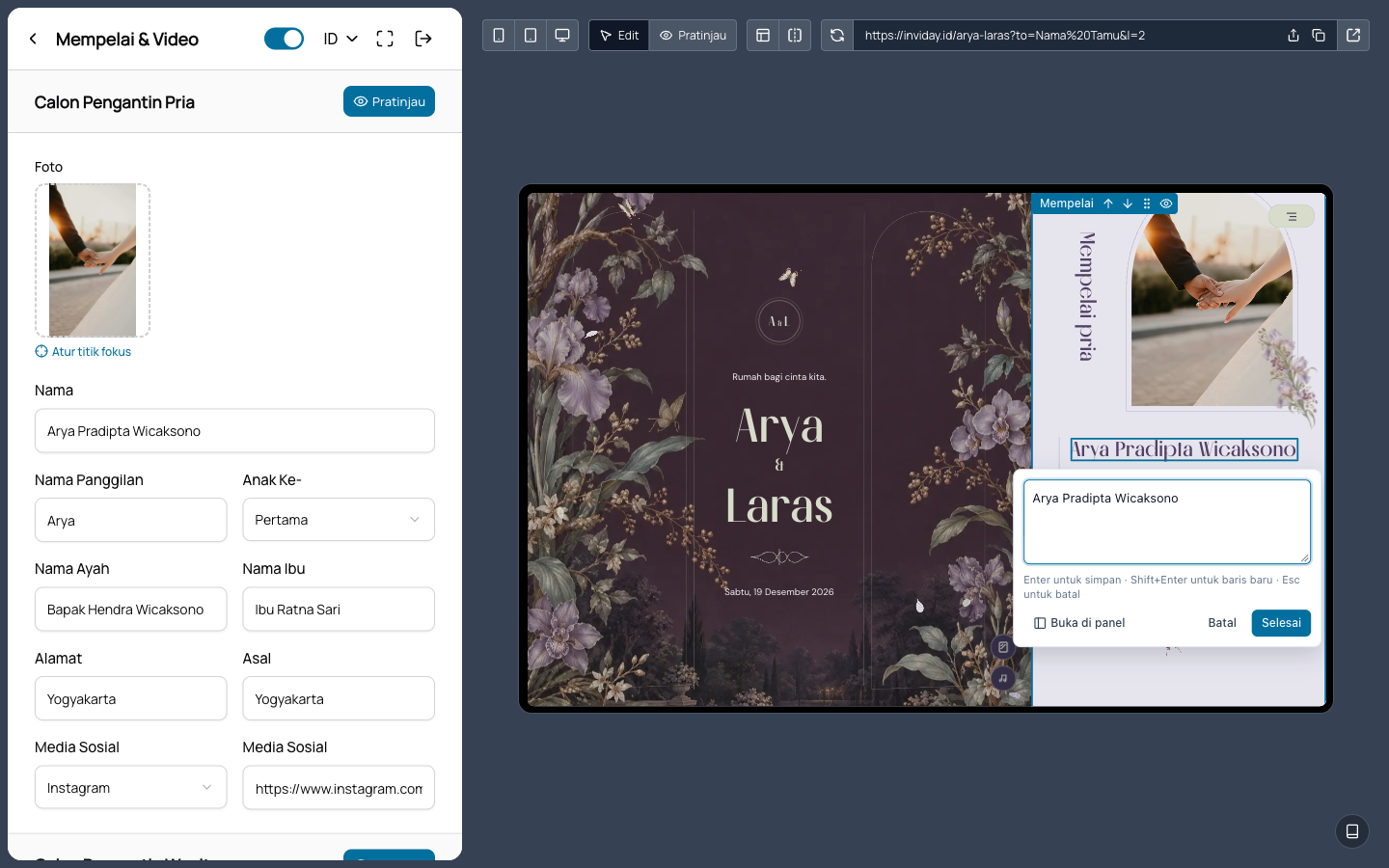
Double-click one of your texts, such as the couple's names or the opening line.
{% endstep %}
{% step %}
### Type your change
* Enter to save, Shift+Enter for a new line, Esc to cancel.
* In texts that support formatting, wrap words in `**double asterisks**` for **bold** and `*single asterisks*` for *italics*.
* Click **Open in panel** to change it in the settings panel instead.
Changing the couple's names right in the preview
{% endstep %}
{% step %}
### Save
Your change goes into the draft. Click **Save** in the bar at the bottom of the panel for guests to see it.
{% endstep %}
{% endstepper %}
## Replacing a photo
* **Double-click a photo** to open the image picker, or **drag a photo file** onto it.
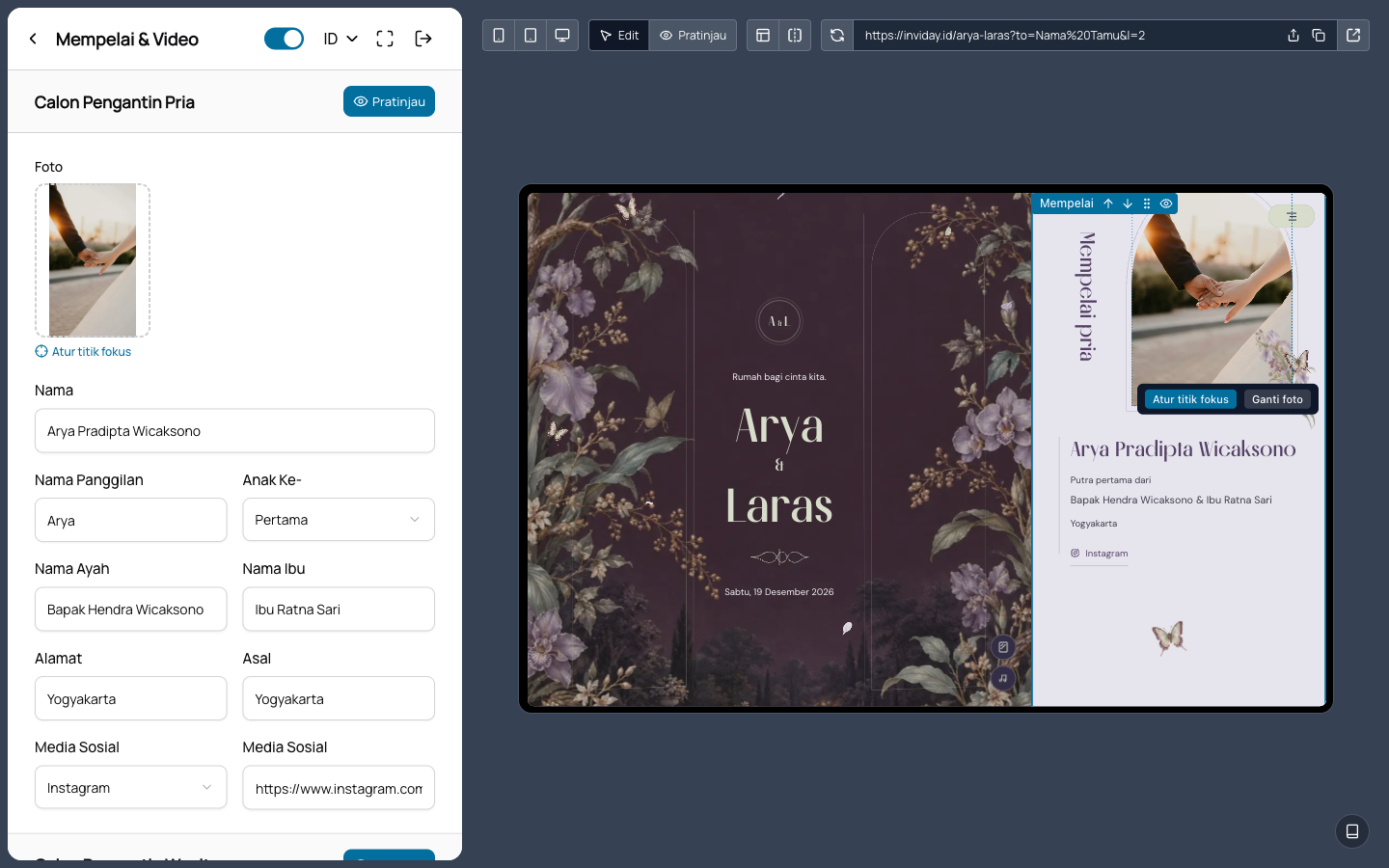
* **Click a photo once** to see the **Replace photo** and **Set focal point** options.
The options that appear after you click a photo once
A new photo is also a draft until you click **Save**.
### The image picker
In the image picker you can upload a photo (up to 10 MB, in JPG, PNG, WEBP, SVG, or ICO format) or choose a sticker from **Giphy**. After choosing one, adjust the photo: rotate, flip, straighten, zoom, and pick a crop ratio.
### Focal point
Designs crop photos to the shape of their frames. The focal point decides which part of the photo always stays visible, such as the couple's faces. Click **Set focal point**, then click or drag on the photo. You can also use the arrow keys (hold Shift for bigger steps). Click **Center** to reset it.
{% hint style="info" %}
You can only set the focal point of a photo that's already saved.
{% endhint %}